








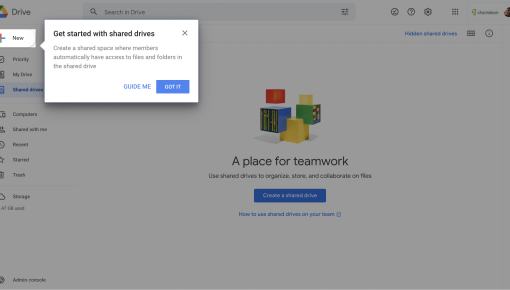
Google Drive's Onboarding Tooltip
The tooltip zeroes in on the key value: automatic access for all members, making it a no-brainer for team...



Existing customer? Sign in
Guide users to discover and try key features, like the HelpBar, by drawing their attention with a subtle hotspot and providing a quick, helpful explanation without interrupting their workflow.
Product teams face a universal challenge: how do you help users discover valuable features without disrupting their workflow? Traditional onboarding methods like modal overlays and lengthy tours often feel intrusive, leading to high abandonment rates and frustrated users. The solution lies in contextual user guidance that feels natural and unobtrusive.
In-app tooltips with hotspots represent the perfect balance between visibility and subtlety. These contextual guidance tools appear as small, pulsing indicators that draw attention to specific UI elements without blocking the interface. When users interact with the hotspot, they receive targeted information exactly when and where they need it. This approach transforms feature discovery from an interruption into an organic part of the user experience, making it essential for lifecycle education and product adoption strategies.
An in-app tooltip with hotspot is a contextual guidance mechanism that combines a subtle visual indicator (the hotspot) with informational content (the tooltip) to highlight specific features or UI elements. Unlike traditional tooltips that appear on hover, hotspot tooltips use a small, animated beacon to proactively signal that helpful information is available.
The hotspot component typically appears as a pulsing dot or ring positioned near the target element. This visual cue is intentionally subtle—noticeable enough to catch attention but not so prominent that it disrupts the user's current task. When clicked or hovered over, the hotspot reveals a tooltip containing relevant information, instructions, or feature explanations.
This approach differs significantly from modal overlays that block the entire interface or guided tours that force users through predetermined sequences. Hotspot tooltips respect user agency, allowing them to access contextual help on their own terms while maintaining full control over their workflow.
Common use cases include announcing new feature launches, providing contextual help for complex workflows, highlighting underutilized features, and creating discoverable entry points to help systems. Chameleon's hotspot positioning capabilities allow precise placement anywhere on your interface, with customizable styling and advanced targeting options that ensure the right users see relevant guidance at the optimal moment.
Implementing hotspot tooltips in Chameleon follows a straightforward process that puts you in complete control of the user experience. Start by selecting the In-App Tooltip with Hotspot template from Chameleon's template gallery, which provides a proven foundation optimized for engagement and conversion.
Template Customization: Use Chameleon's visual editor to position your hotspot precisely where it will be most effective. The editor allows pixel-perfect placement, ensuring your hotspot appears exactly where users' attention naturally flows. Customize the hotspot's appearance—size, color, animation style—to match your product's design language while maintaining sufficient contrast for visibility.
Content Creation: Craft concise, action-oriented tooltip content that delivers immediate value. Your heading should clearly communicate the benefit, while the body text provides just enough context to drive action. For example, when promoting a HelpBar feature, your tooltip might read: "Get instant answers" with supporting text like "Search our knowledge base without leaving your workflow."
Targeting and Segmentation: Leverage Chameleon's advanced targeting capabilities to show tooltips to the right users at the right time. Segment by user behavior, feature usage, account properties, or custom events. This precision ensures your contextual guidance feels relevant rather than random.
Launch and Monitoring: Deploy your hotspot tooltip with Chameleon's built-in analytics and integrate with your product analytics tool to track engagement rates, click-through rates, and subsequent feature adoption.
Chameleon's integration with user behavior data means your tooltips can trigger based on specific actions, time spent in certain areas, or user journey milestones, creating truly contextual experiences that feel like natural extensions of your product.
Strategic Timing: Deploy hotspot tooltips when users are most receptive to learning. This typically occurs during natural pause points in workflows, after completing key actions, or when users demonstrate exploration behavior. Avoid showing tooltips during high-concentration tasks or immediately after users encounter errors.
Visual Hierarchy Management: Position hotspots to complement, not compete with, your interface's existing visual hierarchy. Place them near—but not directly on—the elements they're highlighting to avoid accidental clicks. Ensure sufficient contrast with background elements while maintaining your product's aesthetic consistency.
Content Excellence: Write tooltip content that passes the "5-second test"—users should immediately understand the value proposition and next steps. Use active voice, benefit-focused language, and clear calls-to-action. Avoid jargon or lengthy explanations that might overwhelm users seeking quick guidance.
Frequency Management: Prevent tooltip fatigue by carefully managing how often and how many tooltips users encounter. Implement smart dismissal logic that respects user preferences and tracks interaction history. Consider implementing progressive disclosure, where successful engagement with one tooltip unlocks access to more advanced guidance.
Success Measurement: Track meaningful metrics beyond simple click rates. Monitor feature adoption rates, task completion improvements, and support ticket reduction in areas where you've implemented tooltips. These deeper metrics demonstrate the true impact of your contextual guidance strategy.
Design Principles: Maintain subtle visual cues that enhance rather than overwhelm the user experience. Your hotspots should feel like helpful hints from a knowledgeable colleague, not aggressive sales pitches. Strategic placement near relevant UI elements creates natural discovery patterns that users find intuitive and helpful.
Hotspot tooltips excel in scenarios where traditional onboarding methods fall short. For new user feature discovery, they provide gentle guidance without forcing users through rigid sequences. Advanced feature education benefits from tooltips that appear contextually when users demonstrate readiness for more sophisticated functionality.
Workflow optimization represents another powerful use case, where tooltips can suggest efficiency improvements or highlight shortcuts that save time. Help system promotion, like the HelpBar example in the template, creates discoverable entry points to self-service resources without cluttering the interface.
Seasonal feature highlights leverage tooltips to announce limited-time functionality or promote features relevant to specific time periods, ensuring users don't miss valuable opportunities that align with their current needs.
How do I customize tooltip content in Chameleon? Use Chameleon's visual editor to modify text, styling, and positioning. The template system provides proven frameworks while allowing complete customization of messaging and appearance.
What's the difference between hotspot tooltips and guided tours? Hotspot tooltips offer optional, contextual guidance that users can access on-demand, while guided tours provide structured, sequential experiences. Tooltips respect user agency; tours provide comprehensive education.
How do I measure tooltip effectiveness? Track engagement rates, feature adoption improvements, and user behavior changes following tooltip interactions. Chameleon's analytics and integrations with product analytics tools provide detailed insights into tooltip performance and user response patterns.
Can I target tooltips to specific user segments? Yes, Chameleon's advanced targeting allows segmentation by user properties, behavior patterns, account characteristics, and custom events, ensuring relevant guidance reaches the right users.
What are tooltip best practices for SaaS products? Focus on contextual relevance, subtle visual design, concise messaging, and strategic timing. Avoid overwhelming users with too many tooltips and always provide clear value propositions that justify the interruption.
Hotspot tooltips represent the evolution of user guidance—respectful, contextual, and effective. By implementing these best practices with Chameleon's robust template system, you'll create experiences that users appreciate rather than endure, driving feature adoption while maintaining the seamless workflows your users value.
Start a free trial or talk to our team.